What to Do If the Microphone is Not Working on Laptop?
Is your laptop microphone not working? This can be very frustrating. You want to talk to friends or join an important meeting. But no sound comes through. Don’t worry. This guide will help you fix the problem step by step.
Why Does the Microphone Stop Working?
There are many reasons why your laptop microphone may not work. It could be because of software settings, hardware problems, or driver issues. Sometimes, the microphone is turned off by mistake. Other times, your laptop needs an update. Let’s look at simple ways to find and fix the problem.
Check the Basic Things First
Before going deeper, check these simple points:
- Is your microphone plugged in correctly? For external microphones, check the cable and port.
- Is the microphone muted? Sometimes, there is a mute button on the keyboard or microphone itself.
- Is the volume turned up? If the mic volume is too low, it might seem like it is not working.
- Try restarting your laptop. This can fix many small issues.
Check Microphone Settings on Your Laptop
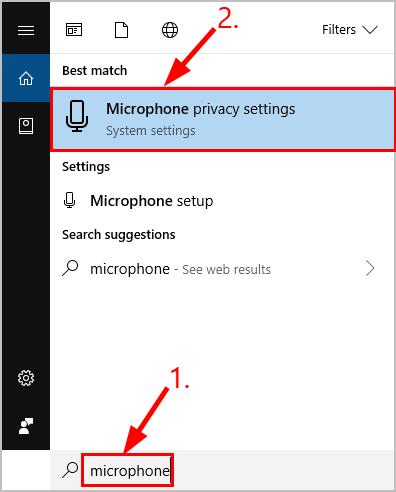
Your laptop has settings to control the microphone. Sometimes, the mic is turned off there. Follow these steps to check your microphone settings.
For Windows 10 Or 11:
- Click the Start button.
- Select Settings (the gear icon).
- Click on Privacy & Security.
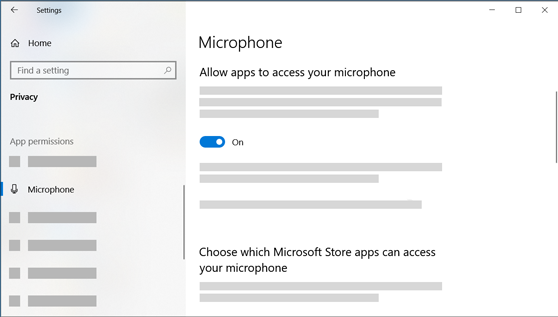
- On the left side, find and click Microphone.
- Make sure the option “Allow apps to access your microphone” is turned on.
- Scroll down and check if the app you want to use has permission to use the microphone.
For Mac Os:
- Click the Apple menu.
- Select System Preferences.
- Click Security & Privacy.
- Go to the Privacy tab.
- Select Microphone from the list on the left.
- Make sure the apps you want to use have permission to access the mic.
Test Your Microphone
After checking the settings, test if your microphone is working. Here is how you can do it:
On Windows:
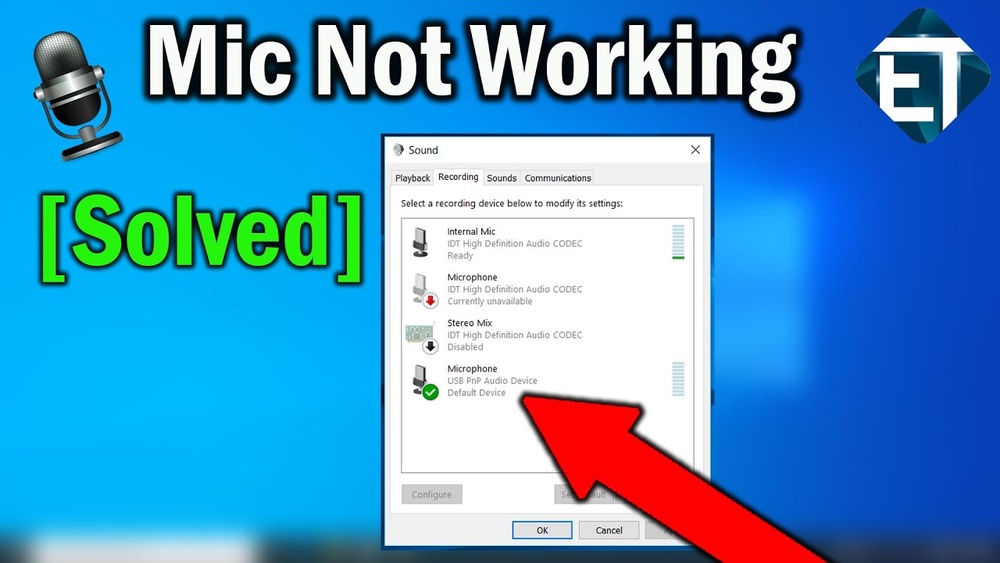
- Right-click the Sound icon in the taskbar.
- Select Sounds.
- Go to the Recording tab.
- Speak into your microphone. You should see green bars moving next to your microphone name.
- If you don’t see any movement, your mic is not detecting sound.
On Mac:
- Open System Preferences.
- Click Sound.
- Go to the Input tab.
- Select your microphone from the list.
- Speak and watch the input level meter. It should move with your voice.
Credit: www.drivereasy.com
Update or Reinstall Audio Drivers
If your microphone is still not working, the problem could be with your audio drivers. Drivers help your laptop talk to hardware parts like the microphone.
How To Update Drivers On Windows:
- Press Windows + X keys and select Device Manager.
- Find Audio inputs and outputs and click to expand.
- Right-click your microphone device and select Update driver.
- Choose Search automatically for updated driver software.
- Follow the instructions if an update is found.
How To Reinstall Drivers On Windows:
- Open Device Manager.
- Right-click your microphone device under Audio inputs and outputs.
- Select Uninstall device.
- Restart your laptop. Windows will reinstall the driver automatically.
On Mac:
Mac updates drivers automatically with system updates. Check for updates:
- Click the Apple menu.
- Select System Preferences.
- Click Software Update.
- Install any available updates.
Credit: support.microsoft.com
Run the Troubleshooter (Windows Only)
Windows has a built-in tool to help fix microphone problems. Here’s how to use it:
- Click the Start button.
- Select Settings.
- Click Update & Security.
- Choose Troubleshoot from the left menu.
- Select Additional troubleshooters.
- Find and click Recording Audio.
- Click Run the troubleshooter and follow the instructions.
Check Your Privacy and Security Software
Sometimes, antivirus or security programs block your microphone. Check if your security software is blocking the mic. You can try temporarily turning off the security program. Then test the microphone again.
Try Using an External Microphone
If your laptop’s built-in mic is not working, try an external microphone. You can use a USB mic or a headset with a mic. Plug it into your laptop and check if it works. If the external mic works, the problem is likely with the built-in mic.
Check for Hardware Problems
If none of the above steps work, the microphone hardware might be faulty. This means there could be a problem inside your laptop. Here are some signs:
- The microphone does not respond at all.
- Other microphones work fine on your laptop.
- You hear strange noises or no sound at all.
If you think the hardware is broken, you should take your laptop to a technician. They can open your laptop and fix or replace the mic.
Summary Table: Quick Fixes for Microphone Issues
| Problem | What to Do |
|---|---|
| Microphone muted | Check the mute button and unmute it. |
| Microphone permission denied | Allow microphone access in privacy settings. |
| Microphone volume too low | Increase microphone volume in sound settings. |
| Driver problems | Update or reinstall audio drivers. |
| Software blocking mic | Check antivirus and security software settings. |
| Built-in mic hardware broken | Use an external mic or visit a technician. |
Final Tips
Keep your system updated. Regular updates help fix bugs. Always check your microphone settings before important calls. If you use apps like Zoom or Skype, check their mic settings too. Sometimes, apps choose the wrong microphone.
Try not to panic. Microphone problems are common. Usually, they can be fixed easily. Follow these steps patiently. You will hear your voice again soon.
Frequently Asked Questions
Why Is My Laptop Microphone Not Detected?
The microphone may be disabled or the driver could be missing or outdated.
How Can I Test My Laptop Microphone?
Use the sound settings or record a voice note to check if the microphone works.
What Should I Do If The Mic Is Muted?
Check the sound settings and ensure the microphone is not muted or volume too low.
Can A Software Update Fix Microphone Issues?
Yes, updating your audio drivers or operating system can often fix microphone problems.