How to Do Microphone Test
Using a microphone is common today. Many people use microphones for calls, videos, or meetings. But sometimes, the microphone may not work well. So, you need to test it. This guide will help you learn how to do a microphone test easily.
Why Is It Important to Test Your Microphone?
Testing your microphone helps you check if it works. It shows if the sound is clear or quiet. It also helps find problems early. You can fix issues before important calls or recordings. This saves time and avoids trouble.
What Do You Need for a Microphone Test?
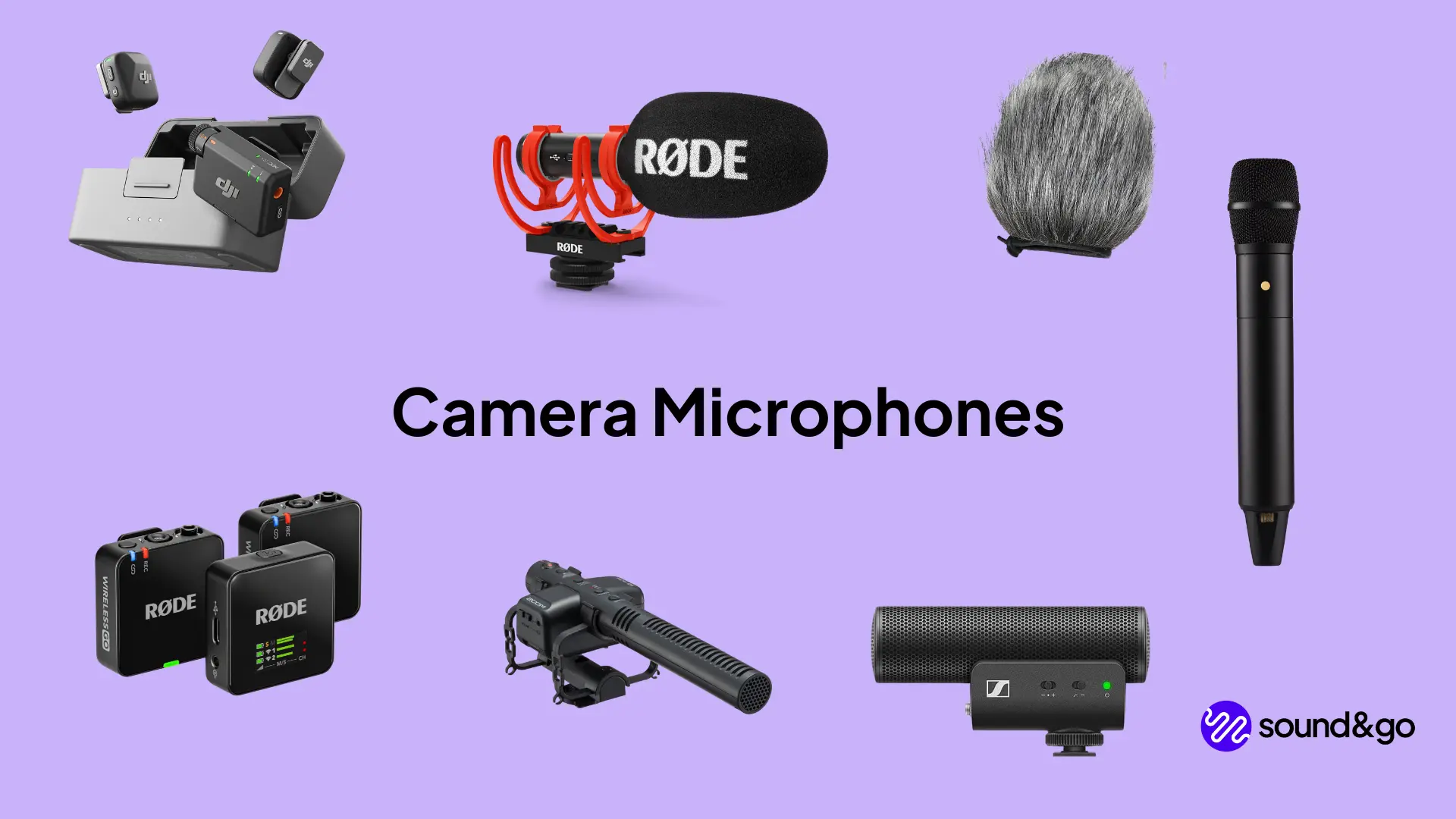
- A microphone (built-in or external)
- A computer, smartphone, or tablet
- Internet connection (optional)
- Software or website to record sound
Credit: www.getcontrast.io
Step-by-Step Guide to Test Your Microphone
Step 1: Connect Your Microphone
First, plug your microphone into your device. If it is built-in, skip this step. For external microphones, use the correct port. It can be a USB port or a headphone jack. Make sure it fits well and is secure.
Step 2: Check Microphone Settings
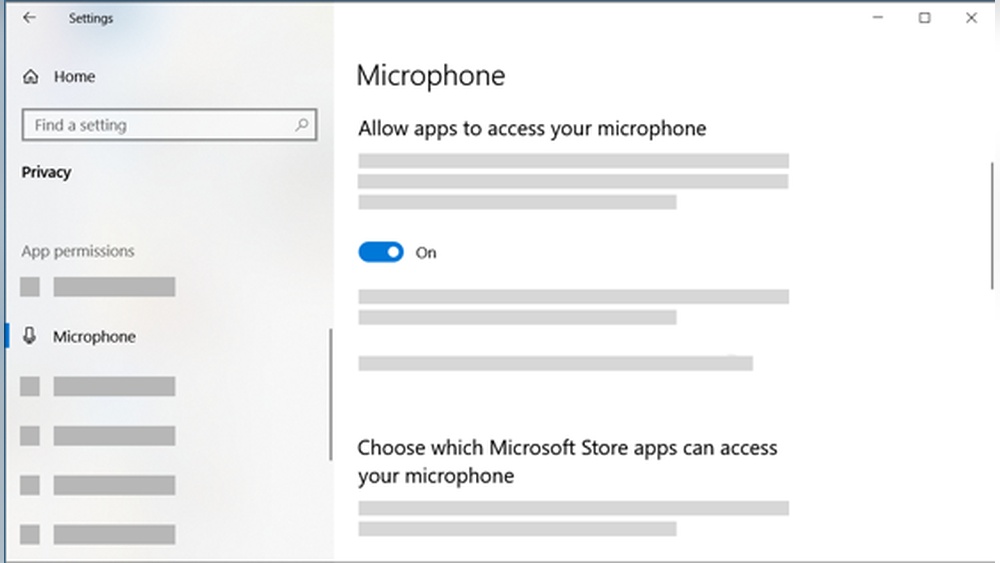
Open your device’s settings. Find the sound or audio section. Look for the microphone options. Make sure your microphone is selected as the input device. If you have many microphones, choose the one you want to test.
Step 3: Adjust Microphone Volume
Set the microphone volume to a medium level. Not too low, not too high. You can change this later if needed. This helps avoid too quiet or too loud sounds.
Step 4: Use A Sound Recording Tool
Open any sound recording app on your device. Most devices have one built-in. For example, Voice Recorder on Windows or Voice Memos on iPhone. You can also use online tools like Online Voice Recorder.
Step 5: Record Your Voice
Press the record button. Speak clearly into the microphone. Say a few sentences or simple words. Try to speak at a normal volume. After a few seconds, stop the recording.
Step 6: Listen To The Recording
Play the recording. Listen carefully to your voice. Check if the sound is clear and loud enough. Look for background noise or static. If you hear problems, you may need to adjust settings or check the microphone.
Common Problems Found During a Microphone Test
| Problem | What It Means | How to Fix |
|---|---|---|
| No Sound | Microphone is not detected | Check connection and settings |
| Very Low Volume | Mic volume too low or far from mouth | Increase volume or move closer |
| Static or Noise | Interference or bad cable | Use a different cable or quiet place |
| Echo or Feedback | Speaker sound captured by mic | Lower speaker volume or use headphones |
How to Test Microphone on Different Devices
Testing On Windows Pc
- Click on Start and open Settings.
- Go to System > Sound.
- Under Input, select your microphone.
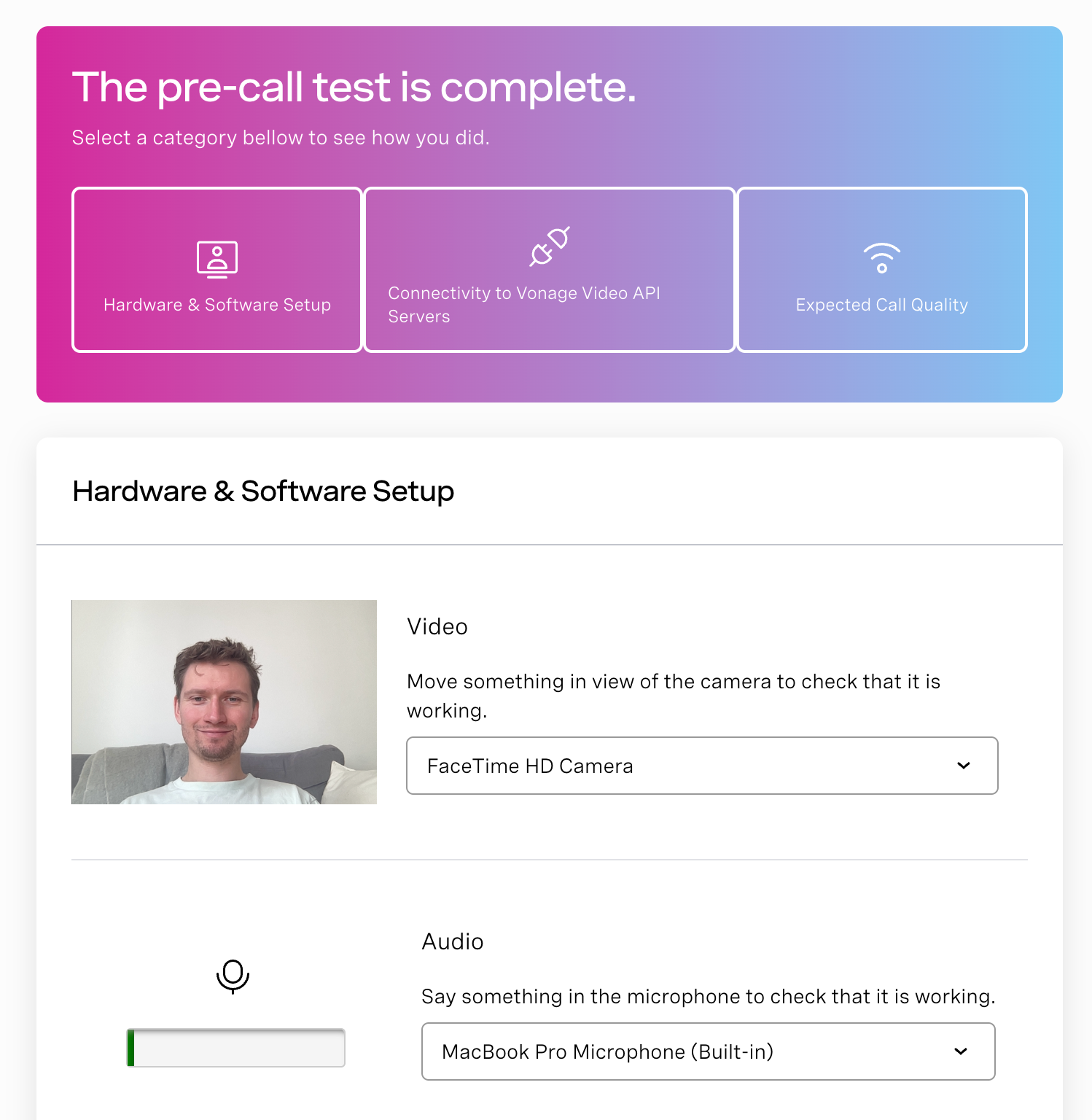
- Speak and watch the test bar move.
- Use Voice Recorder app to record and check sound.
Testing On Mac
- Open System Preferences.
- Click on Sound, then Input tab.
- Select your microphone from the list.
- Speak and see the input level change.
- Use QuickTime Player to record voice.
Testing On Android
- Open the Voice Recorder app or any recording app.
- Press Record and speak into the mic.
- Stop and play the recording.
- Adjust microphone settings in device settings if needed.
Testing On Iphone Or Ipad
- Open the Voice Memos app.
- Tap the red record button.
- Speak clearly into the microphone.
- Stop and play your recording.
- Change mic permissions in Settings if it doesn’t record.
Credit: soundandgo.com
Tips to Improve Microphone Quality
- Speak clearly and close to the microphone.
- Reduce background noise and move to quiet places.
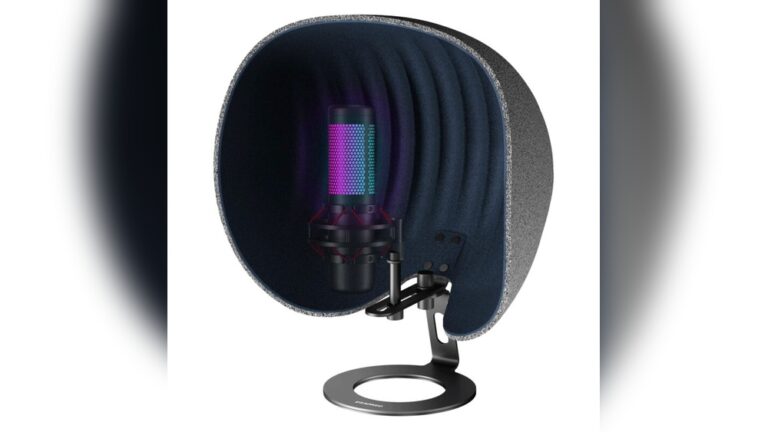
- Use a pop filter to reduce wind or breath sounds.
- Keep the microphone clean and dust-free.
- Use headphones to avoid echo and feedback.
- Test regularly before important calls or recordings.
What to Do If Your Microphone Still Does Not Work
If your microphone still has problems, try these steps:
- Restart your device to fix temporary bugs.
- Update your audio drivers or device software.
- Try a different microphone to see if the problem is hardware.
- Check if your microphone is muted in settings.
- Contact technical support if you cannot fix the issue.
Frequently Asked Questions
How Do I Test My Microphone On Windows?
Go to Sound settings, select your microphone, and speak to check input levels.
What App Can I Use To Test My Mic Online?
Use free websites like Online Mic Test or MicTests. com for quick checks.
Why Is My Microphone Volume Too Low During Tests?
Check mic settings and increase input volume or move closer to the mic.
How To Check If My Microphone Is Working On Mac?
Open System Preferences > Sound > Input and speak to see input levels.
Conclusion
Testing your microphone is easy and useful. It helps make sure your voice is heard clearly. Follow the steps here to test any microphone. Remember, good microphone sound improves your calls and recordings. Check your microphone often. Fix problems early to avoid trouble. With these tips, your microphone will work well every time.