Why Isn’t Microphone Working on Ipad?
Many people use iPads every day. They use them for video calls, recording sounds, or talking with friends. But sometimes, the microphone stops working. This can be very frustrating. You want to speak, but no one hears you.
In this article, we will explain why the microphone is not working on your iPad. We will also show you easy ways to fix it. You don’t need to be a tech expert. Just follow the simple steps.
Common Reasons Why Microphone Stops Working
There are many reasons why the iPad microphone may not work. Here are some common ones:
- Software problems: Sometimes, the iPad system has bugs or errors.
- App permissions: Some apps do not have permission to use the microphone.
- Physical damage: The microphone may be broken or dirty.
- Settings issues: The sound settings might be wrong.
- External devices: Headphones or Bluetooth devices can cause problems.
Check Microphone Access for Apps
Many apps need permission to use the microphone. If you did not give permission, the mic will not work.
To check permissions:
- Open Settings on your iPad.
- Scroll down and tap Privacy & Security.
- Tap Microphone.
- See the list of apps. Make sure the app you want uses the microphone is allowed.
- If not, turn the switch on.
This is often the reason the microphone does not work in apps like Zoom or FaceTime.
Restart Your iPad
Sometimes, a quick restart can fix problems. It helps the iPad refresh its system.
To restart:
- Press and hold the power button until the slider appears.
- Slide to turn off the iPad.
- Wait for 30 seconds.
- Press the power button again to turn it on.
After restarting, check if the microphone works.
Credit: support.apple.com
Check for Software Updates
Apple often releases updates to fix bugs. Your iPad may have an old version with problems.
To update your iPad:
- Open Settings.
- Tap General.
- Tap Software Update.
- If an update is available, tap Download and Install.
Updating may solve microphone issues.

Credit: www.youtube.com
Clean the Microphone Area
Sometimes dirt or dust blocks the microphone. This makes your voice hard to hear.
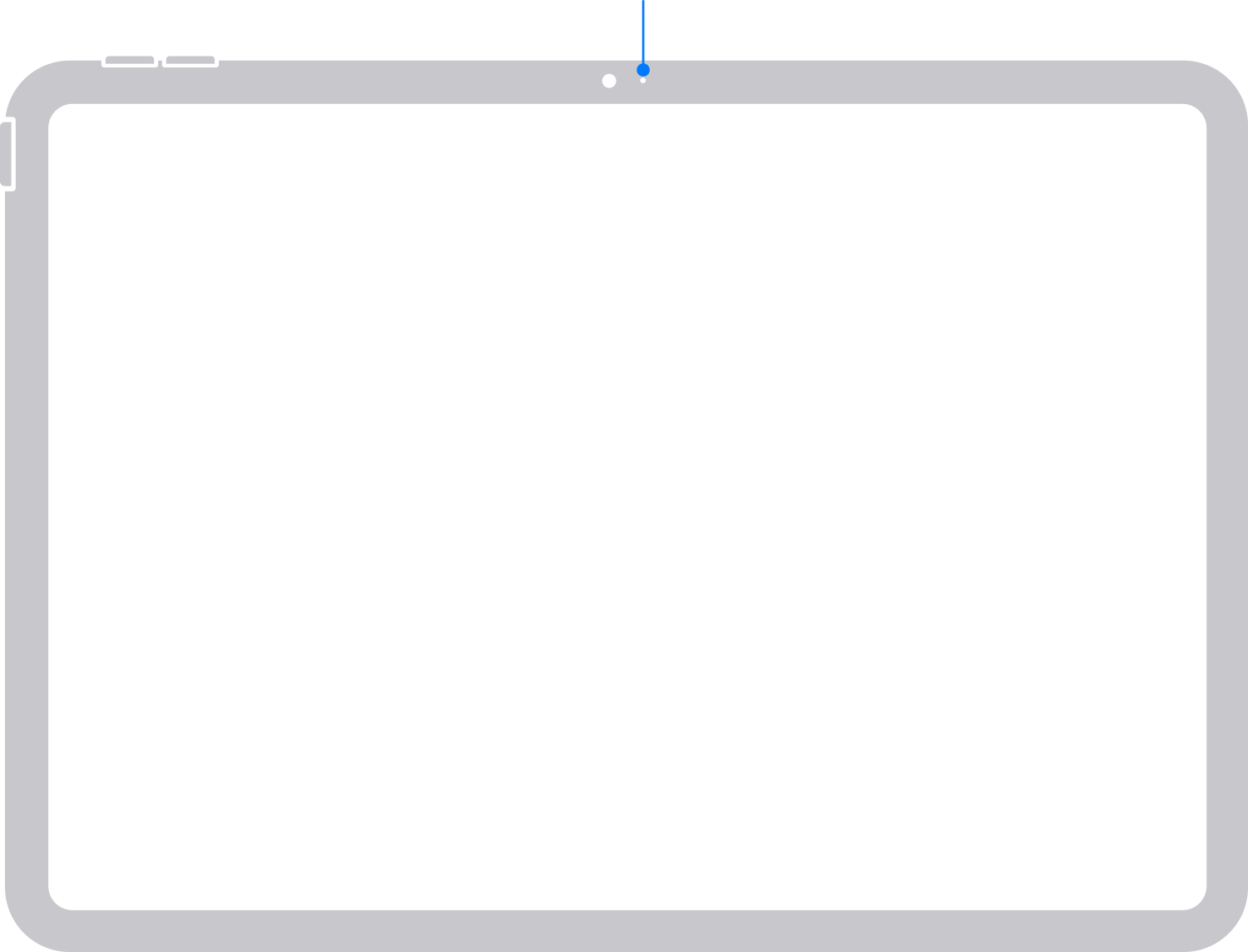
The microphone is usually a small hole near the bottom or top edge of the iPad.
To clean:
- Use a soft brush or a dry cloth.
- Gently clean the microphone area.
- Do not use water or liquid.
After cleaning, test the microphone again.
Test Microphone with Voice Memos
You can check if the microphone works using the Voice Memos app.
Steps:
- Open the Voice Memos app on your iPad.
- Tap the red Record button.
- Speak clearly into the microphone.
- Stop recording and play it back.
If you hear your voice clearly, the microphone works.
If not, the problem might be hardware related.
Disconnect External Devices
Sometimes, Bluetooth headphones or external mics cause problems.
If your iPad thinks you are using an external mic, the built-in one may not work.
To fix:
- Go to Settings > Bluetooth.
- Turn off Bluetooth or disconnect any devices.
- Try using the built-in microphone again.
Reset All Settings
If nothing else works, resetting settings may help.
This will not delete your data but will reset system settings like Wi-Fi and privacy.
To reset:
- Open Settings.
- Tap General.
- Scroll down and tap Transfer or Reset iPad.
- Tap Reset.
- Select Reset All Settings.
- Enter your passcode if asked.
After reset, check the microphone.
When to Contact Apple Support
If your microphone still does not work, it might be a hardware problem.
The microphone can break if the iPad falls or gets wet.
In this case, contact Apple Support or visit an Apple Store.
They can check your iPad and fix or replace the microphone if needed.
Summary: Steps to Fix iPad Microphone
| Step | What to Do |
|---|---|
| 1 | Check app microphone permissions in Settings |
| 2 | Restart your iPad |
| 3 | Update iPad software to the latest version |
| 4 | Clean the microphone gently |
| 5 | Test mic with Voice Memos app |
| 6 | Disconnect Bluetooth or external devices |
| 7 | Reset all settings if needed |
| 8 | Contact Apple support if problem continues |
Final Thoughts
The iPad microphone is important for many tasks. It helps you talk, record, and connect with others.
If it stops working, don’t worry. Most problems can be fixed easily.
Follow the steps in this article. You will likely fix the problem yourself.
If the microphone still does not work, professionals can help.
Keep your iPad safe and clean. This helps avoid microphone problems in the future.
Frequently Asked Questions
Why Is My Ipad Microphone Not Picking Up Sound?
Check if the microphone is blocked or dirty. Also, confirm app permissions are enabled.
How Do I Check Microphone Settings On My Ipad?
Go to Settings > Privacy > Microphone to see which apps can use it.
Can Software Updates Fix Ipad Microphone Issues?
Yes, updating iOS can resolve bugs affecting microphone performance.
What Should I Do If My Ipad Mic Is Physically Damaged?
Contact Apple Support or visit a service center for repair options.