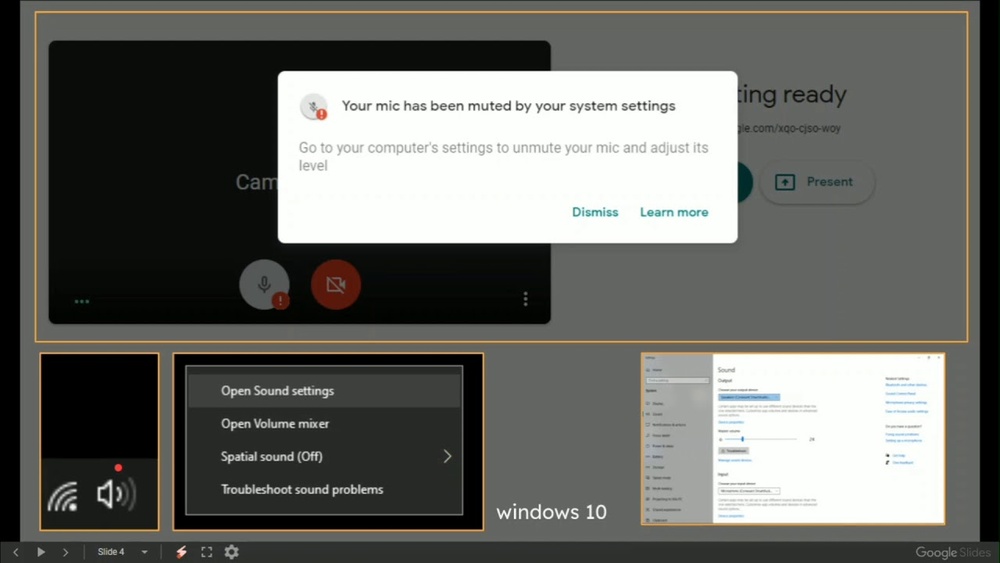
What to Do If Microphone is Not Working in Google Meet?
Google Meet is a popular tool to talk with friends, family, or classmates. Sometimes, your microphone may stop working during a meeting. This can be very frustrating. But don’t worry. We will explain simple steps to fix your microphone problem.
Check the Basics First
Before trying anything difficult, check some simple things. This can save a lot of time.
- Is your microphone plugged in? If you use an external mic, make sure it is connected well.
- Is your microphone muted? Look for a mute button on your mic or headset. If it is on, turn it off.
- Are you using the right microphone? Sometimes, computers have more than one microphone.
- Is the volume up? Make sure the mic volume is not set too low.
Check Google Meet Settings
Google Meet has its own settings for microphone. You need to check them during the meeting.
- In the meeting, find the microphone icon at the bottom.
- If the icon has a slash, your mic is muted. Click it to unmute.
- Click the three dots (More Options) at the bottom right.
- Choose Settings.
- Go to the Audio tab.
- Look under Microphone and select the correct device.
Choosing the wrong mic is a common problem. Make sure you pick the mic you want.
Allow Microphone Access in Your Browser
Google Meet runs in your web browser. The browser needs permission to use your microphone.
If you deny permission, your mic will not work.
To check and allow microphone access:
- Look for a small camera or microphone icon near the web address bar.
- Click the icon.
- Make sure the microphone is set to Allow.
- If it says Block, change it to Allow.
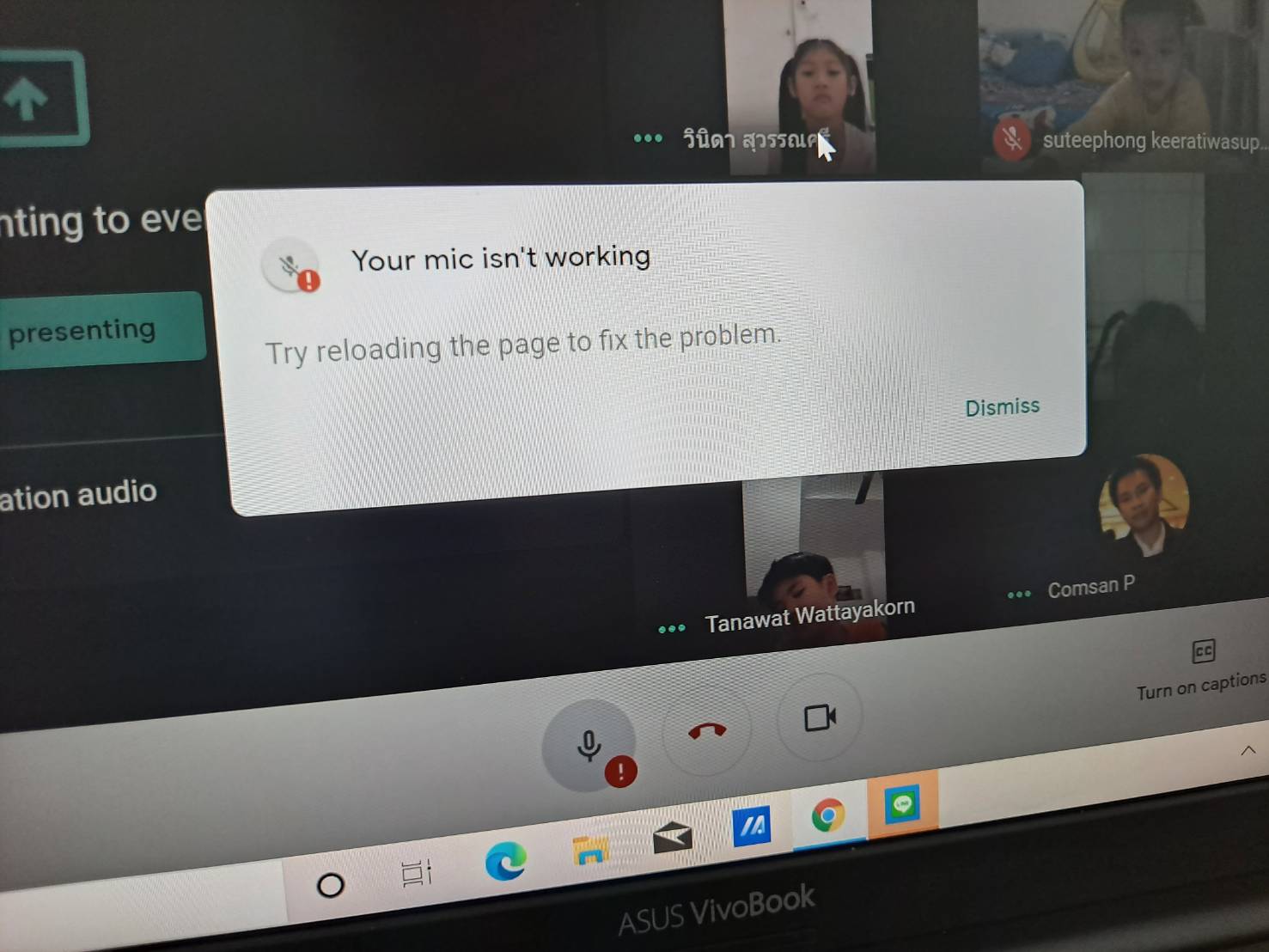
- Reload the Google Meet page.
This step is very important. Without permission, the mic will stay silent.
Credit: support.google.com
Test Your Microphone Outside Google Meet
Sometimes, the problem is not with Google Meet. It could be your microphone or computer.
Test your microphone with other apps or tools:
- Use the Voice Recorder app on your computer or phone.
- Record your voice and play it back.
- If you hear your voice, the mic works well.
- If not, the microphone or its settings may be the problem.
Check Microphone Settings on Your Computer
Your computer controls the microphone. Sometimes, the mic is turned off or the volume is low.
On Windows:
- Click the Start button.
- Go to Settings (gear icon).
- Choose System and then Sound.
- Under Input, find your microphone.
- Speak and check if the bar moves under Test your microphone.
- If the bar does not move, click Device properties.
- Make sure the microphone is not disabled or muted.
On Mac:
- Click the Apple menu and select System Preferences.
- Click Sound.
- Go to the Input tab.
- Select your microphone.
- Speak and watch the input level bar.
- If it is low, increase the input volume.
After adjusting, try Google Meet again.
Restart Your Device
Sometimes, devices just need a fresh start. Restart your computer or phone.
This can fix many small issues. After restart, open Google Meet and check microphone again.
Update Your Browser or App
Older versions of browsers or apps may cause problems.
Make sure your browser or Google Meet app is up to date.
- Open your browser.
- Go to settings or about section.
- Check for updates and install any available.
- Restart the browser after update.
If you use the Google Meet app on phone, go to your app store and update it.
Credit: www.businessinsider.com
Try a Different Browser or Device
If the microphone still does not work, try another browser. For example, if you use Chrome, try Firefox or Edge.
Sometimes, switching devices helps too. Try Google Meet on another computer or phone.
Check for Background Apps Using Your Microphone
Some apps use your microphone in the background. This can block Google Meet from using it.
Close other apps that might use the microphone.
- Video call apps like Zoom, Skype, or Discord.
- Voice recording apps.
- Games or other software that use sound.
After closing, try Google Meet again.
Check Your Internet Connection
A weak internet connection can cause audio problems.
Make sure your internet is working well.
- Try moving closer to your Wi-Fi router.
- Use an Ethernet cable if possible.
- Restart your modem or router.
A better connection can improve audio quality.
Use Google Meet’s Built-in Troubleshooter
Google Meet sometimes shows messages about microphone problems.
Follow any instructions it gives.
The tool may help find and fix the problem quickly.
When All Else Fails: Use an External Microphone
If your built-in microphone still won’t work, try an external mic.
External microphones are easy to use and often better quality.
Plug in a headset or USB microphone and select it in Google Meet settings.
Summary Table: Quick Fixes for Microphone Not Working
| Step | Action | Why? |
|---|---|---|
| 1 | Check mic plug, mute button, and volume. | Simple causes fix fast. |
| 2 | Check Google Meet mic settings. | Meet may use wrong mic. |
| 3 | Allow mic access in browser. | Browser needs permission. |
| 4 | Test mic with other apps. | Find if mic or Meet causes problem. |
| 5 | Adjust mic settings on computer. | Mic may be muted or low volume. |
| 6 | Restart device. | Fix many small errors. |
| 7 | Update browser or app. | Old software may cause trouble. |
| 8 | Try another browser or device. | Rule out device-specific issues. |
| 9 | Close other apps using mic. | Mic can be busy. |
| 10 | Check internet connection. | Good connection helps audio. |
Final Thoughts
Microphone issues in Google Meet are common. Usually, they are easy to fix. Follow the steps carefully. Take your time. You will get your mic working again.
Clear speech helps you join meetings without problems. A working microphone makes communication easy and fun.
Frequently Asked Questions
Why Is My Microphone Not Detected In Google Meet?
The microphone may be disabled or not selected in Google Meet settings.
How Do I Allow Microphone Access On Google Meet?
Click the lock icon in the browser’s address bar and enable microphone permission.
What To Do If Google Meet Microphone Is Muted?
Check if the microphone icon is crossed out and click it to unmute.
Can Browser Updates Fix Microphone Issues In Google Meet?
Yes, updating your browser can resolve compatibility and microphone detection problems.