How Do You Know If Your Microphone is on in Zoom?
Zoom is a popular app for video calls and meetings. Many people use Zoom for school, work, and talking with friends. When you join a Zoom call, you might wonder if your microphone is on. It is important to know this. If your microphone is off, others cannot hear you. If it is on, they can hear you talk.
Why Is It Important to Know If Your Microphone is On?
Sometimes, you think you are talking, but no one hears you. This happens because your microphone is off. Other times, you might want to listen only. So, you turn your microphone off. Knowing the microphone status helps you control when to speak and when to stay silent.
Where to Look to See If Your Microphone is On in Zoom
Zoom shows the microphone status in the meeting window. Look at the bottom left corner. You will see a small microphone icon. This icon tells you if your microphone is on or off.
Microphone Icon Meanings
- Microphone Without a Slash: Your microphone is on. Others can hear you.
- Microphone With a Red Slash: Your microphone is off. Others cannot hear you.
Simple, right? The icon is the fastest way to check your microphone status.
How to Turn Your Microphone On or Off
To change your microphone status, click the microphone icon. If it has a red slash, clicking will turn it on. If it has no slash, clicking will turn it off. Try this during your meeting to control when you speak.
Using Keyboard Shortcuts to Check Microphone Status
Zoom also lets you use keys to mute and unmute. This is fast and easy.
- Windows: Press and hold the Spacebar to talk. Release to mute.
- Mac: Press and hold the Spacebar to talk. Release to mute.
When you hold the spacebar, Zoom shows your microphone is on. This helps if you want to check quickly.
Check Your Microphone in Zoom Settings
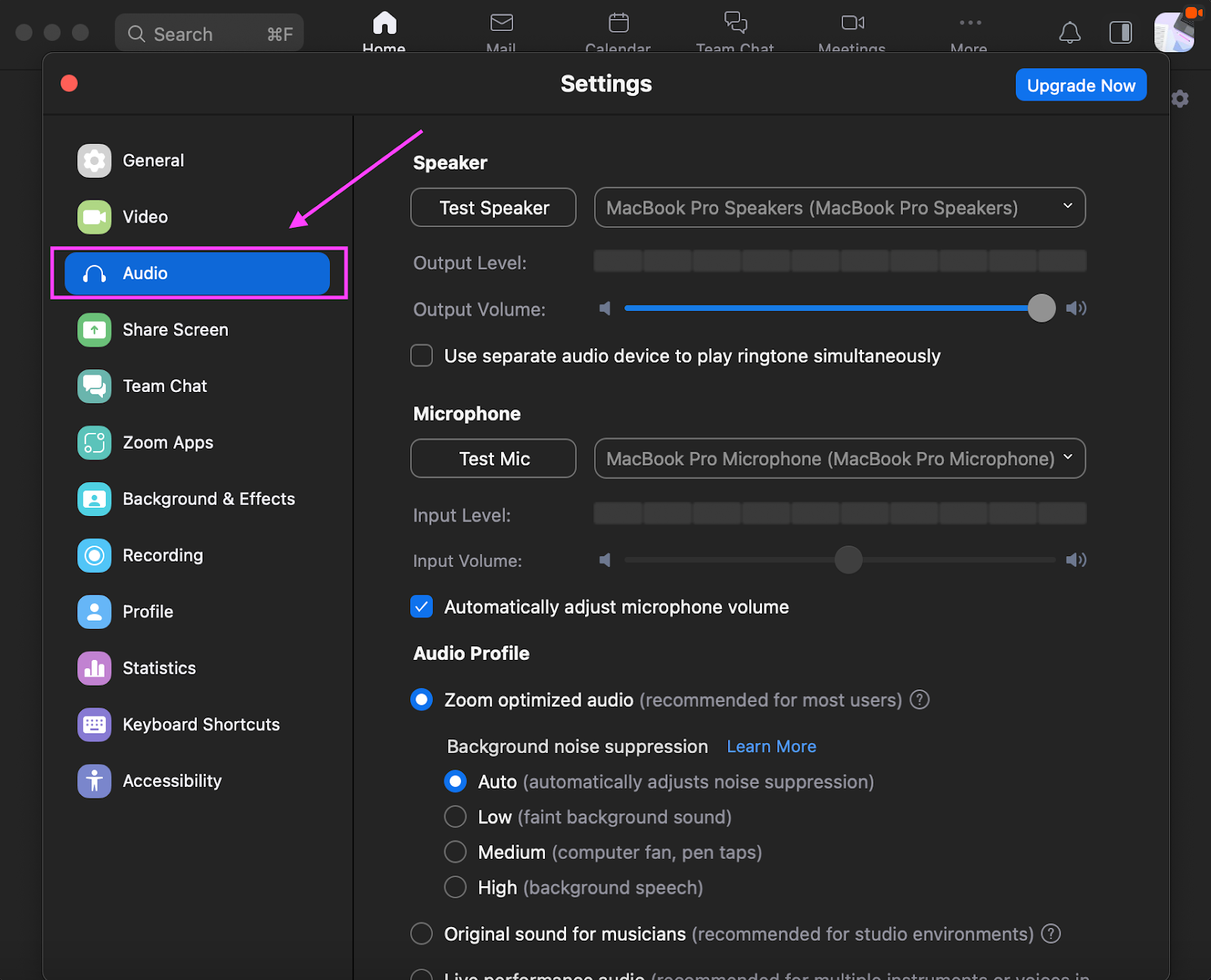
You can also check your microphone in Zoom’s settings. Here is how:
- Open Zoom and go to the main screen.
- Click your profile picture or the gear icon to open Settings.
- Choose the Audio tab.
- Look under Microphone. You will see a dropdown menu.
- Speak to test if Zoom detects your voice.
If you see the green bar move when you talk, your microphone is on and working.
What If Your Microphone is Not Working?
Sometimes, your microphone may not work even if Zoom shows it is on. Here are some tips to fix this:
- Make sure your microphone is plugged in or connected.
- Check if your computer allows Zoom to use the microphone.
- Try restarting Zoom or your computer.
- Test your microphone in other apps to see if it works there.
- Update Zoom to the latest version.
If you still have problems, ask for help from someone who knows computers.
Credit: fireflies.ai
How to Tell If Others Can Hear You
Sometimes, you want to know if people can hear you during the call.
- Ask someone in the meeting to tell you if they hear your voice.
- Look for feedback or reactions when you talk.
- Use the Test Speaker and Microphone option in Zoom settings.
This helps you confirm your microphone is working for everyone.
Tips to Use Your Microphone Well in Zoom
Good microphone use makes meetings better. Here are some simple tips:
- Mute your microphone when you are not speaking.
- Speak clearly and close to your microphone.
- Avoid background noise or move to a quiet place.
- Use headphones with a microphone for better sound.
- Check your microphone before the meeting starts.
Credit: blogs.otago.ac.nz
Summary Table: How to Know Your Microphone Status in Zoom
| Microphone Icon | Meaning | What to Do |
|---|---|---|
| Microphone without slash | Microphone is on | Speak, others can hear you |
| Microphone with red slash | Microphone is off | Click icon to turn it on |
Final Thoughts
Knowing if your microphone is on in Zoom is easy. Just watch the microphone icon. Use Zoom settings to check your mic. Use keyboard shortcuts to mute and unmute fast. Remember to mute when not speaking. This stops noise and helps the meeting.
Practice checking your microphone before important calls. This helps you feel ready and confident. Now you know how to see if your microphone is on in Zoom. Use this knowledge to join meetings smoothly.
Frequently Asked Questions
How Can I Tell If My Microphone Is On In Zoom?
Look for a microphone icon at the bottom left of your Zoom window. If it’s not crossed out, it’s on.
What Does The Red Microphone Icon Mean In Zoom?
A red microphone icon with a slash means your mic is muted and not transmitting sound.
How Do I Unmute My Microphone During A Zoom Call?
Click the microphone icon or press the space bar to unmute yourself temporarily.
Can I Check My Mic Status Before Joining A Zoom Meeting?
Yes, Zoom shows a microphone preview with mute/unmute options before entering a meeting.