What to Do If Your Google Meet Microphone is Not Working?
Are you in a Google Meet call and your microphone is not working? It can be very frustrating. You want to speak, but others cannot hear you. Do not worry. This guide will help you fix your microphone quickly. We will explain easy steps anyone can follow.
Check Your Microphone Connection
First, check if your microphone is connected properly. If you use a headset or an external microphone, make sure it is plugged in well. Sometimes, the cable is loose or not fully inserted.
- If you have a wired headset, unplug it and plug it back in.
- Try using a different USB port or audio jack.
- If you use a wireless headset, check if it is charged and connected via Bluetooth.
Test Your Microphone Outside Google Meet
Before blaming Google Meet, test your microphone with another app. You can use the voice recorder on your computer or phone.
- Open the voice recorder app.
- Speak and record your voice.
- Play the recording to check if your voice is clear.
If the recording is silent, your microphone may not work at all. Fix this first before joining Google Meet again.
Allow Google Meet to Use Your Microphone
Google Meet needs permission to use your microphone. Sometimes, the browser blocks this by mistake.
- Look at the address bar of your browser.
- You may see a camera or microphone icon with a red cross or a lock.
- Click on the icon and select “Allow” for microphone access.
After you allow access, refresh the Google Meet page and try again.
Choose the Correct Microphone in Google Meet
Google Meet may use the wrong microphone if you have more than one device.
- In your Google Meet window, find the three dots at the bottom right corner.
- Click on it and select “Settings.”
- Go to the “Audio” tab.
- Under “Microphone,” pick the right device from the list.
Try speaking to see if the green bar moves. This shows your voice is detected.
Credit: support.google.com
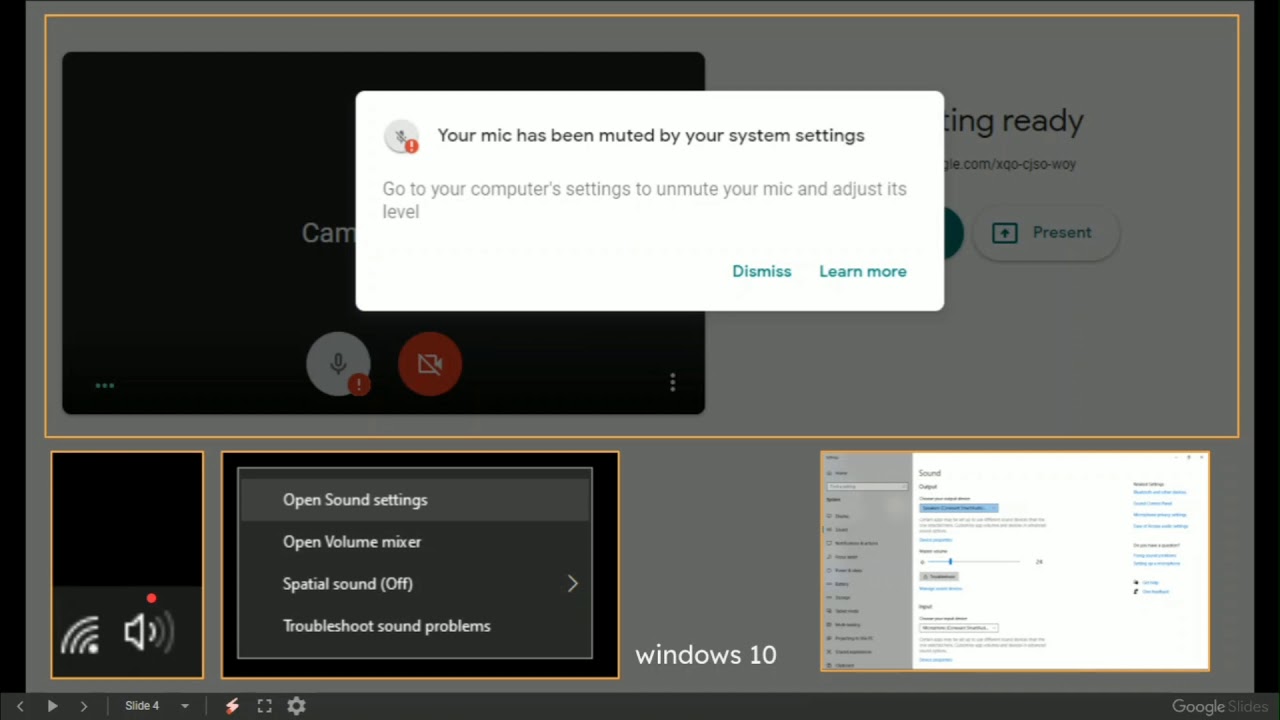
Check Your Computer’s Microphone Settings
Your computer may block the microphone from working. Check the sound settings.
For Windows Users
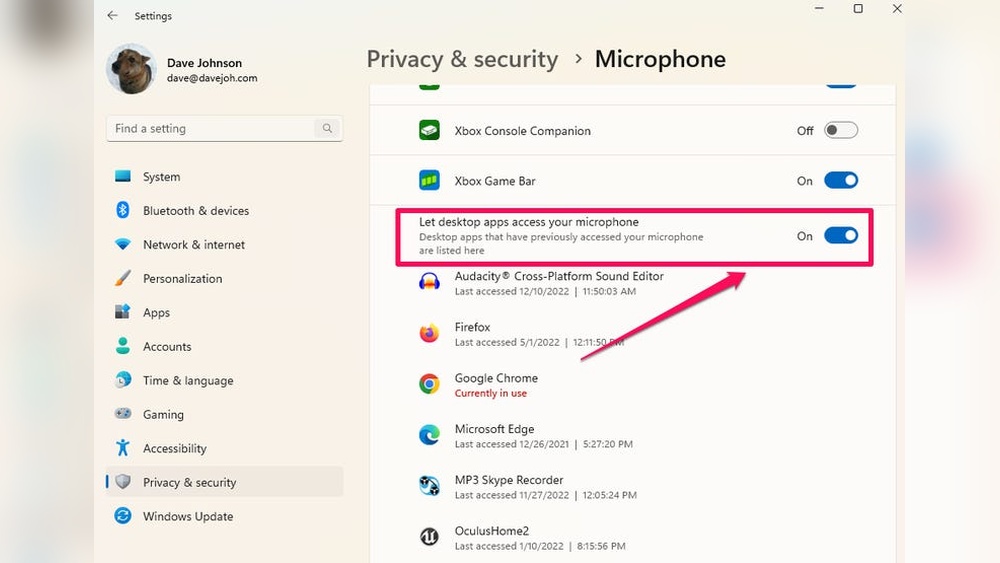
- Click the Start button and open “Settings.”
- Go to “Privacy” and then “Microphone.”
- Make sure “Allow apps to access your microphone” is turned on.
- Scroll down and find Google Chrome (or your browser).
- Ensure the browser has permission to use the microphone.
For Mac Users
- Click the Apple menu and open “System Preferences.”
- Select “Security & Privacy.”
- Click on the “Privacy” tab.
- Choose “Microphone” from the list.
- Make sure your browser is checked to allow microphone access.
Close Other Apps Using the Microphone
Sometimes, other apps use your microphone. This can cause Google Meet not to hear you.
- Close apps like Skype, Zoom, or voice recorders.
- Restart Google Meet after closing these apps.
Restart Your Computer or Device
Simple but effective. Restart your device to fix many problems.
Restarting clears temporary errors and frees the microphone for use.
Update Your Browser
Google Meet works best on updated browsers. Old versions may have bugs.
- Check your browser’s version.
- Go to the browser menu and find “About.”
- Update to the latest version if available.
Use Google Meet in a Different Browser
If your microphone still does not work, try another browser.
- Google Meet works well on Chrome, Firefox, Edge, and Safari.
- Open Google Meet in a different browser and test the microphone.
Credit: www.youtube.com
Check Microphone Hardware
Sometimes, the microphone itself may have a problem.
- Try using another microphone if you have one.
- Test your microphone on another device.
If the mic does not work on any device, it may be broken.
Clear Browser Cache and Cookies
Old cache and cookies may cause issues with Google Meet.
- Go to your browser settings.
- Find “Privacy” or “History.”
- Clear cache and cookies.
- Restart the browser and try Google Meet again.
Check for Background Noise or Muted Microphone
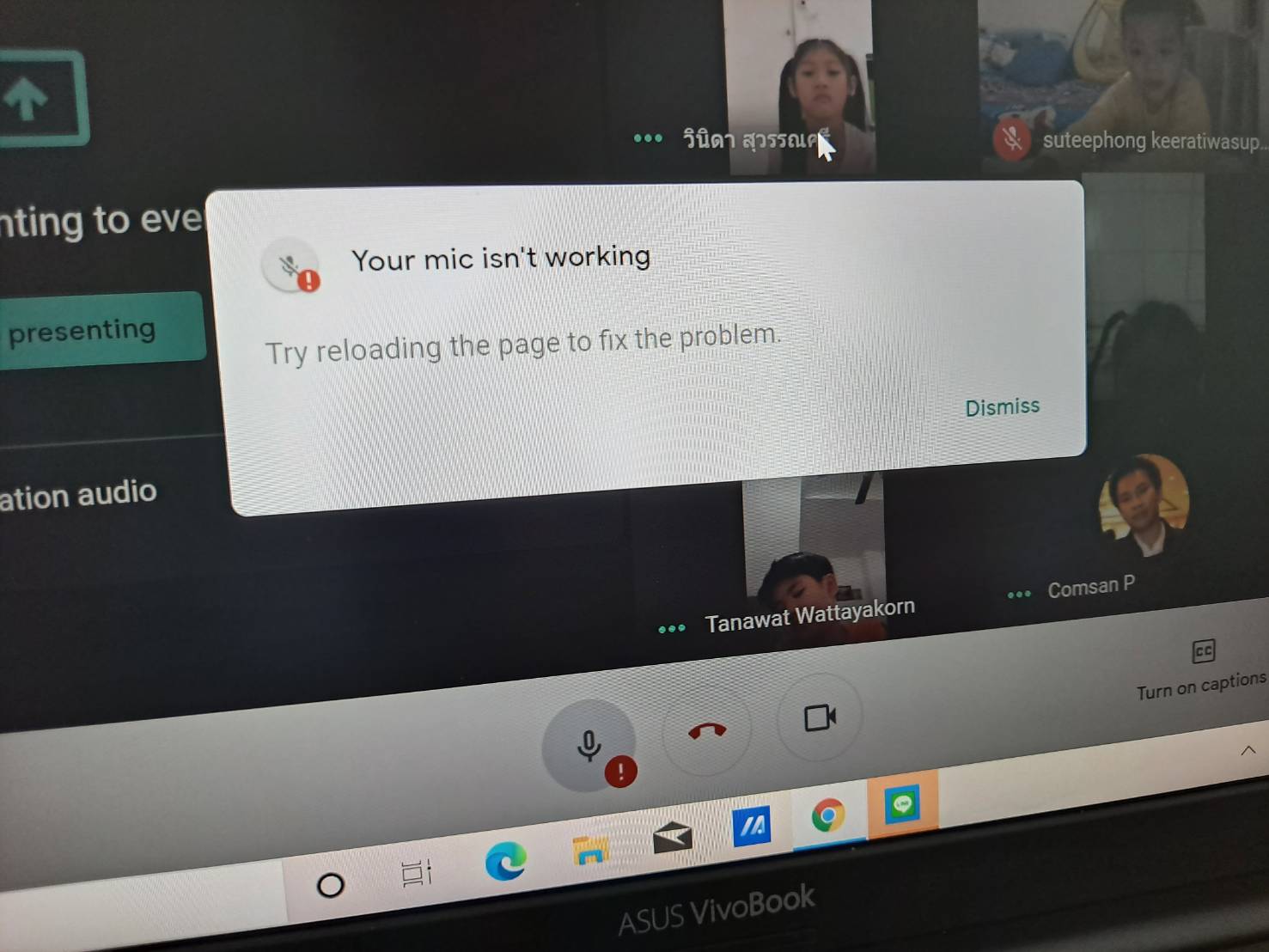
Make sure your microphone is not muted in Google Meet.
- Look for the microphone icon on the screen.
- If it has a line through it, click it to unmute.
- Try speaking and see if others can hear you.
Also, try to use your microphone in a quiet room. Background noise may cause issues.
Use Google Meet Troubleshooter
Google offers a troubleshooter to fix common problems.
- Search for “Google Meet microphone troubleshooter” online.
- Follow the steps given on the official support page.
Summary Table of Solutions
| Problem | Solution |
|---|---|
| Microphone not connected | Check cables and connections |
| Microphone permission denied | Allow microphone access in browser |
| Wrong microphone selected | Choose correct microphone in Meet settings |
| Computer blocks microphone | Change privacy settings on PC or Mac |
| Other apps use microphone | Close other apps using the mic |
| Browser outdated or buggy | Update or switch browser |
| Microphone hardware problem | Test with another mic or device |
Final Tips
If your microphone still does not work, try these tips:
- Use headphones with a built-in mic.
- Join Google Meet on a different device.
- Ask someone to help you check settings.
- Contact support if needed.
Remember, microphone problems are common and fixable. Stay calm and follow the steps carefully. Soon, you will speak clearly in your Google Meet calls again.
Frequently Asked Questions
Why Is My Google Meet Microphone Not Working?
Check if the microphone is muted or blocked by another app. Also, verify device permissions.
How Do I Allow Microphone Access For Google Meet?
Go to browser settings, find site permissions, and enable microphone access for Google Meet.
Can Browser Updates Affect Google Meet Microphone?
Yes, outdated browsers may cause microphone issues. Update your browser to fix problems.
How To Test My Microphone Before A Google Meet Call?
Use the Google Meet preview or your device’s sound settings to check microphone function.