What to Do If Microphone is Not Working in Microsoft Teams?
Microsoft Teams is a popular app for meetings and talks. Sometimes, your microphone might stop working. This can be very frustrating. You might not be able to speak to your friends or coworkers. But don’t worry! This guide will help you fix the microphone problem in Microsoft Teams. The steps are easy to follow, even if you are not an expert.
Check Your Microphone First
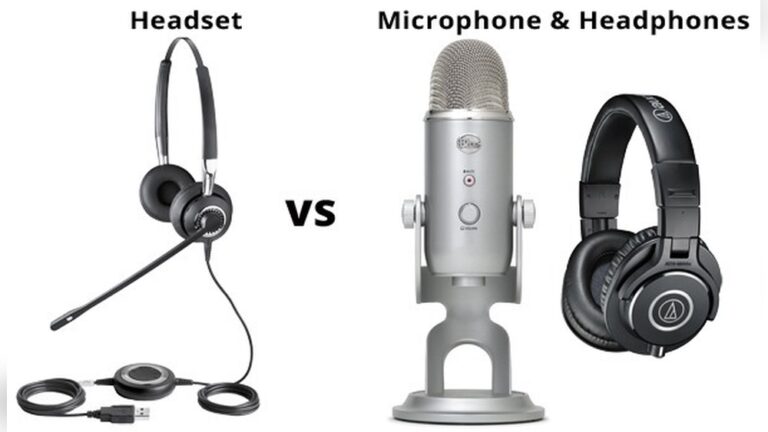
Before trying anything complicated, check your microphone. Is it plugged in? If you use a headset, make sure it is connected to the right port. If you use a wireless headset, check if it is charged and linked to your computer.
Try to use your microphone with another app. For example, open the Voice Recorder on your computer. Speak and see if it records sound. If it does not work, the problem might be with the microphone itself.
Make Sure Microsoft Teams Can Use Your Microphone
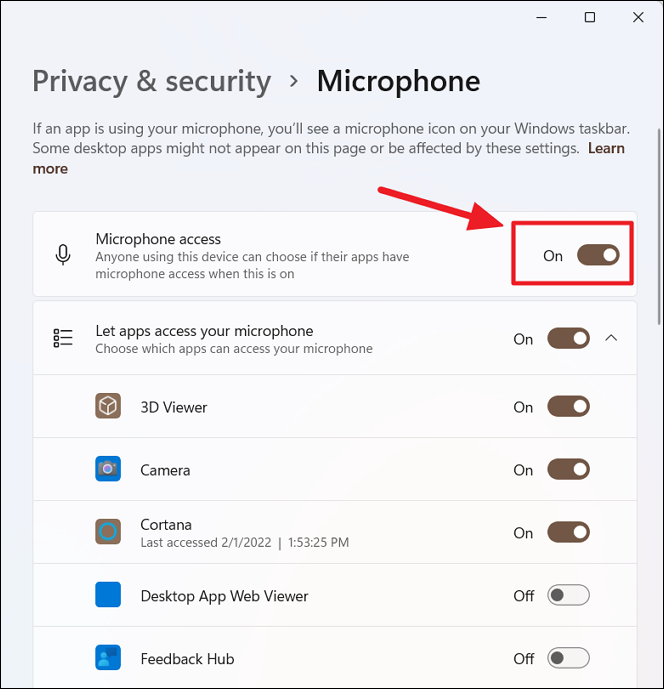
Sometimes, the app does not have permission to use your microphone. You need to allow it.
For Windows Users:
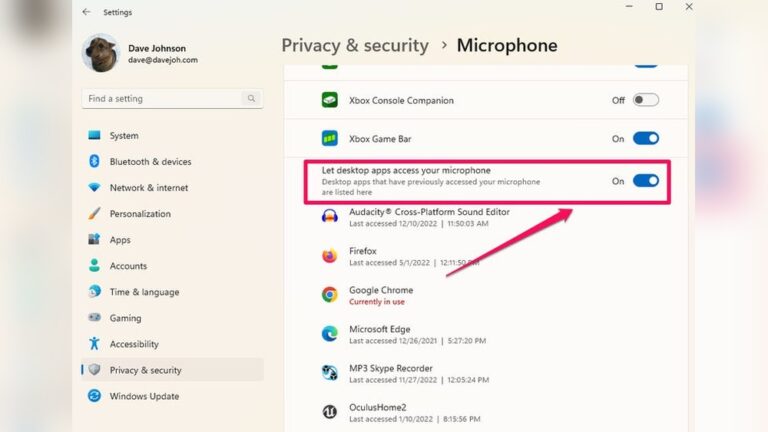
- Click the Start button and open Settings.
- Go to Privacy > Microphone.
- Make sure “Allow apps to access your microphone” is turned ON.
- Scroll down and check that Microsoft Teams is allowed to use the microphone.
For Mac Users:
- Open System Preferences.
- Click on Security & Privacy.
- Go to the Privacy tab and select Microphone.
- Make sure Microsoft Teams is checked.
Credit: www.guidingtech.com
Check Microphone Settings in Microsoft Teams
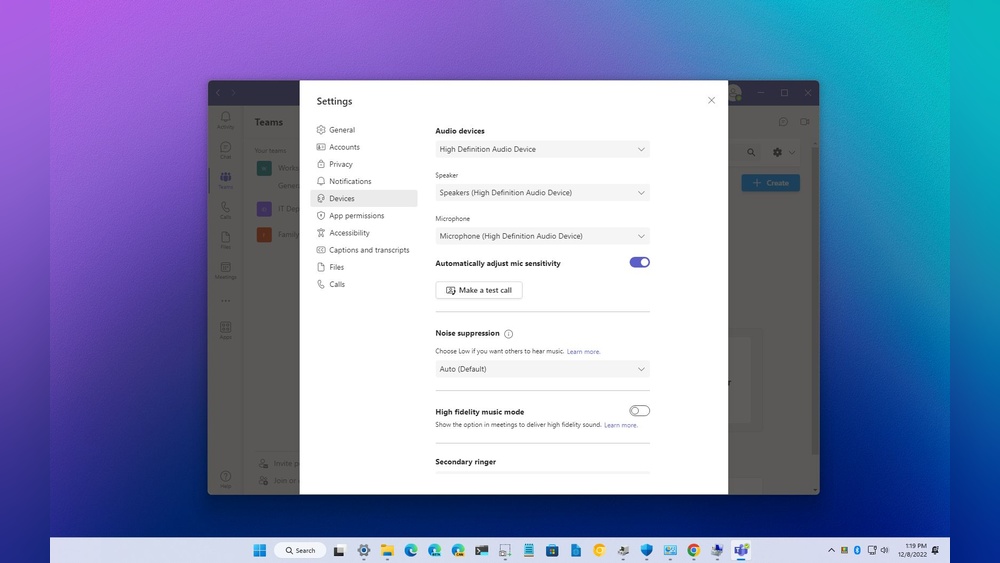
Microsoft Teams has its own microphone settings. Sometimes, the wrong microphone is selected. This can stop sound from working.
- Open Microsoft Teams.
- Click on your profile picture in the top right corner.
- Select Settings.
- Go to Devices.
- Look under the Microphone section.
- Choose the microphone you want to use from the list.
- Speak to see if the volume bar moves. This shows the mic is working.
Restart Microsoft Teams
Sometimes, the app just needs a fresh start.
- Close Microsoft Teams completely.
- Make sure it is not running in the background.
- Open the app again and test your microphone.
Credit: allthings.how
Check Your Computer’s Sound Settings
Your computer controls microphone input too. Check if the mic is muted or volume is low.
For Windows:
- Right-click the speaker icon in the taskbar.
- Choose Open Sound settings.
- Under Input, select your microphone.
- Speak and watch the volume meter. It should move.
- If the volume is low, increase it.
- Check if the microphone is muted. Unmute if needed.
For Mac:
- Open System Preferences.
- Click Sound.
- Go to the Input tab.
- Select your microphone.
- Speak and look at the input level. It should rise.
- If the input volume is low, move the slider up.
Update Your Audio Drivers
Audio drivers help your computer talk to the microphone. Old drivers can cause problems.
For Windows:
- Press the Windows key and type Device Manager.
- Open Device Manager.
- Find Audio inputs and outputs and expand it.
- Right-click your microphone device.
- Choose Update driver.
- Follow the steps to search for updates automatically.
For Mac:
Mac updates include audio drivers. To update:
- Click the Apple menu.
- Select System Preferences.
- Click Software Update.
- Install any updates available.
Try Using a Different Microphone
If possible, try a different microphone. This can help find out if the problem is with your mic or the app.
If the new microphone works, your old microphone may be broken.
Check for Teams App Updates
Old versions of Microsoft Teams may have bugs. Updating the app can fix many issues.
- Open Microsoft Teams.
- Click on your profile picture.
- Select Check for updates.
- Teams will look for and install updates.
- Restart the app after updating.
Clear Microsoft Teams Cache
Cache stores temporary files. Sometimes, these files cause problems. Clearing cache can help.
How To Clear Cache On Windows:
- Close Microsoft Teams completely.
- Press Windows + R keys.
- Type
%appdata%\Microsoft\Teamsand press Enter. - Delete all files and folders inside this folder.
- Restart Microsoft Teams.
How To Clear Cache On Mac:
- Close Microsoft Teams.
- Open Finder.
- Click Go > Go to Folder.
- Type
~/Library/Application Support/Microsoft/Teamsand click Go. - Delete the contents of this folder.
- Open Microsoft Teams again.
Reinstall Microsoft Teams
If nothing else works, try reinstalling the app. This fixes many software problems.
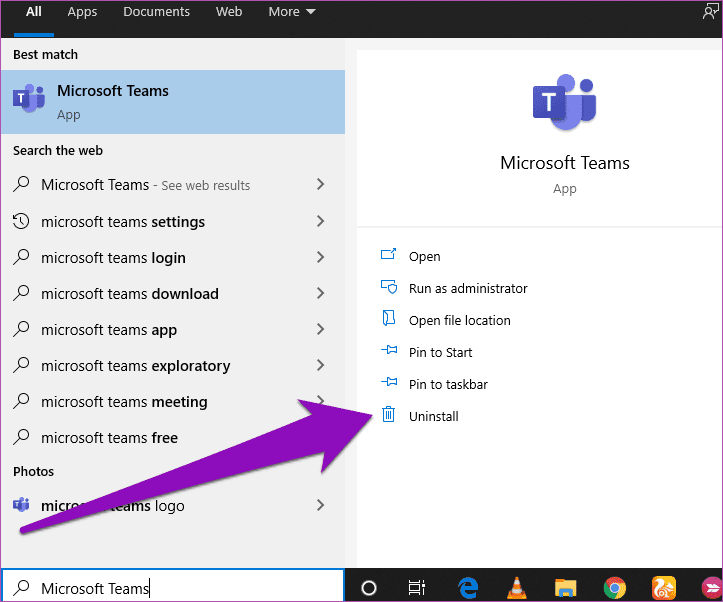
- Uninstall Microsoft Teams from your computer.
- Go to the official Microsoft Teams website.
- Download the latest version of the app.
- Install it and sign in.
- Test your microphone again.
Extra Tips to Check
- Make sure your microphone is not muted during calls.
- Check if other apps are using the microphone at the same time.
- Close other apps that might block microphone access.
- Try restarting your computer if problems persist.
Summary Table: Quick Fixes for Microphone Issues
| Problem | What to Do |
|---|---|
| Microphone not plugged in | Check cable or wireless connection |
| Teams app has no mic permission | Allow microphone access in system settings |
| Wrong microphone selected | Select correct mic in Teams device settings |
| Mic muted or low volume | Unmute and increase volume in sound settings |
| Outdated audio driver | Update driver via Device Manager or Mac update |
| Teams app bug | Update or reinstall Microsoft Teams |
| Temporary app files corrupted | Clear Teams cache files |
Fixing microphone problems in Microsoft Teams is usually simple. Follow these steps one by one. If one does not work, try the next. Soon, your microphone will work fine again. You will enjoy clear talks and better meetings in Microsoft Teams.
Frequently Asked Questions
Why Is My Microphone Not Detected In Microsoft Teams?
Check if your microphone is plugged in and enabled in Teams settings.
How To Allow Microphone Access In Microsoft Teams?
Go to Teams settings, privacy, and enable microphone permission for the app.
What To Do If Microphone Works Outside Teams?
Restart Teams and check audio device settings inside the app.
Can Outdated Drivers Cause Microphone Issues In Teams?
Yes, update your audio drivers to fix microphone problems in Teams.