Why Does Microphone Volume Decrease Automatically?
Have you ever noticed your microphone volume going down by itself? It can be very annoying. You speak loudly, but the sound still becomes quiet. You might wonder why this happens. Many people face this problem. It is common in computers, phones, and other devices. In this article, we will explain why this happens and how you can fix it.
What Is Microphone Volume?
Microphone volume means how loud your voice sounds when using a mic. If the volume is high, your voice is loud. If the volume is low, your voice is quiet. Many devices let you change the microphone volume. But sometimes, the volume changes by itself. This can confuse users.
Common Reasons Why Microphone Volume Decreases Automatically
There are many reasons why your microphone volume may go down without your help. Here are some common causes:
- Automatic Volume Control: Some devices have a feature that changes volume by itself.
- Background Noise Reduction: The device tries to reduce noise and lowers the mic volume.
- Software Settings: Certain apps can control mic volume automatically.
- Audio Driver Issues: Outdated or wrong drivers can cause volume problems.
- Hardware Problems: Faulty microphones or cables may cause volume changes.
- Operating System Settings: System updates or settings can change mic volume.
Automatic Volume Control Explained
Many devices have a setting called “Automatic Gain Control” or AGC. AGC listens to your voice and changes the volume. If your voice is loud, AGC lowers the volume. If your voice is soft, AGC raises the volume. This helps keep the sound clear and steady.
But sometimes, AGC does not work well. It may lower the volume too much. This makes your voice hard to hear. You might want to turn this feature off if it bothers you.
Credit: www.walmart.com
How Background Noise Affects Microphone Volume
Devices try to stop background noise. Background noise means sounds like fans, cars, or people talking. To reduce noise, the mic volume may go down automatically. This helps your voice sound clearer.
However, if the device thinks your voice is noise, it will lower the volume. This can make you sound quiet or unclear. Background noise reduction is useful but not perfect.
Software and App Control of Microphone Volume
Some apps change microphone volume by themselves. For example, video chat apps or game software may control your mic volume. They do this to make calls clear or balance sound.
Sometimes, these apps lower your mic volume without telling you. This is why your voice sounds quieter. You can check app settings to stop this from happening.
Problems With Audio Drivers
Audio drivers are small programs that help your device use the microphone. If drivers are old or broken, mic volume may go down.
Updating your audio drivers can fix the problem. You can do this through your computer’s device manager or website.
Hardware Issues That Affect Microphone Volume
Sometimes, the microphone or cable may be damaged. A broken mic or loose wire can cause the volume to drop.
Try using another microphone or cable. If the volume stays the same, the problem is with your hardware.
Operating System Settings That Control Mic Volume
Your computer or phone has sound settings. These settings can change your microphone volume automatically.
Sometimes, after a system update, the volume changes. Or the system may lower mic volume to avoid loud sounds.
You can check sound settings to see if automatic control is on. Turning it off may help.
How to Fix Microphone Volume Decreasing Automatically
Now that you know why the volume goes down, here are some ways to fix it.
1. Turn Off Automatic Gain Control (agc)
Go to your microphone settings. Find the AGC or automatic volume control option. Turn it off if you want your volume to stay the same.
2. Check Background Noise Reduction Settings
Look for noise reduction features in your device or app. Try turning them off or adjusting them to see if your volume improves.
3. Change App Settings
Open the app you use for calls or recording. Check if it controls microphone volume automatically. Disable this feature if possible.
4. Update Audio Drivers
Go to your device’s driver manager. Find the audio or microphone driver. Update it to the latest version to fix bugs.
5. Test Your Hardware
Try a different microphone or cable. If the volume stays steady, your hardware was the problem. If not, check settings again.
6. Adjust Operating System Sound Settings
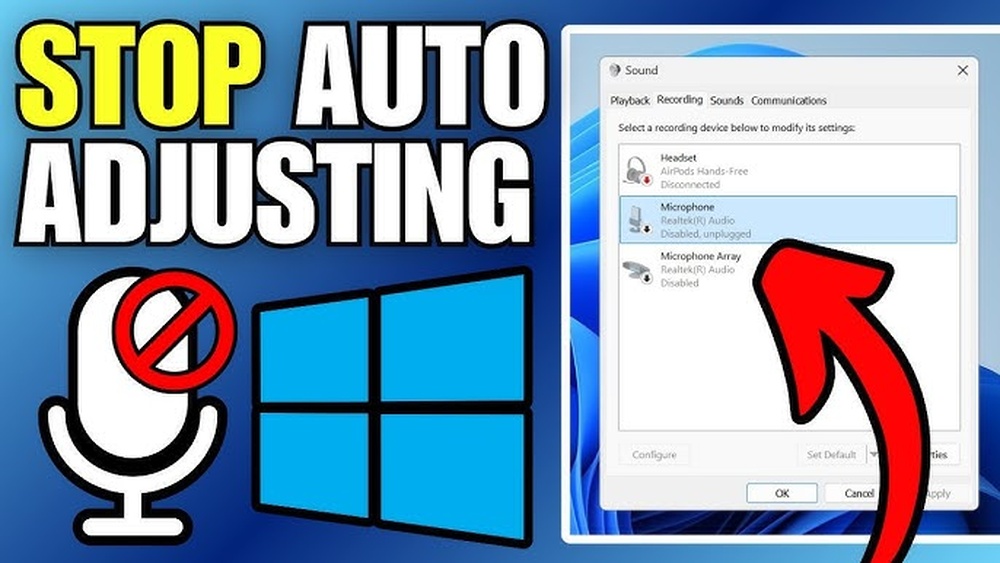
Go to your device’s sound control panel. Find microphone settings. Turn off any automatic volume adjustments.
7. Restart Your Device
Sometimes, a simple restart fixes volume problems. It clears temporary errors that may cause volume drops.
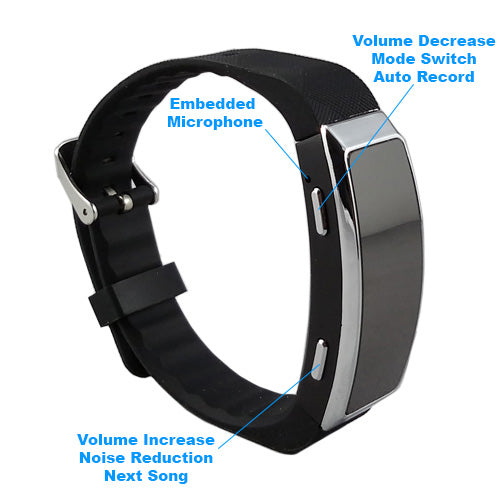
Credit: spycentre.com
Summary Table: Causes and Fixes for Microphone Volume Decrease
| Cause | What Happens | How to Fix |
|---|---|---|
| Automatic Gain Control (AGC) | Volume changes automatically | Turn off AGC in settings |
| Background Noise Reduction | Volume lowers to reduce noise | Disable or adjust noise reduction |
| App Controls | Apps lower mic volume automatically | Change app audio settings |
| Audio Driver Issues | Volume drops due to driver errors | Update or reinstall audio drivers |
| Hardware Problems | Broken mic or cables cause low volume | Test with new mic or cable |
| Operating System Settings | System lowers mic volume automatically | Check and adjust OS sound settings |
Final Thoughts
Microphone volume decreasing automatically is a common problem. It happens for many reasons. Sometimes, your device tries to help by controlling volume. But this can make your voice too quiet. By understanding the causes, you can fix the problem.
Check your device and app settings first. Turn off any automatic controls if you want. Make sure your audio drivers are updated. Test your microphone and cables to find hardware issues. With these steps, your microphone volume should stay steady.
Good sound means better calls, recordings, and games. Don’t let volume drops stop you. Try these tips and enjoy clear, loud sound every time.
Frequently Asked Questions
Why Does Microphone Volume Drop On Its Own?
Automatic volume drop happens due to noise suppression or auto gain control settings.
Can Background Noise Cause Mic Volume To Decrease?
Yes, noise reduction features lower mic volume to block unwanted sounds.
Does Windows Auto-adjust Microphone Volume?
Windows has an option to automatically adjust mic volume for better sound.
How To Stop Microphone Volume From Changing Automatically?
Disable automatic volume adjustment or noise suppression in your sound settings.